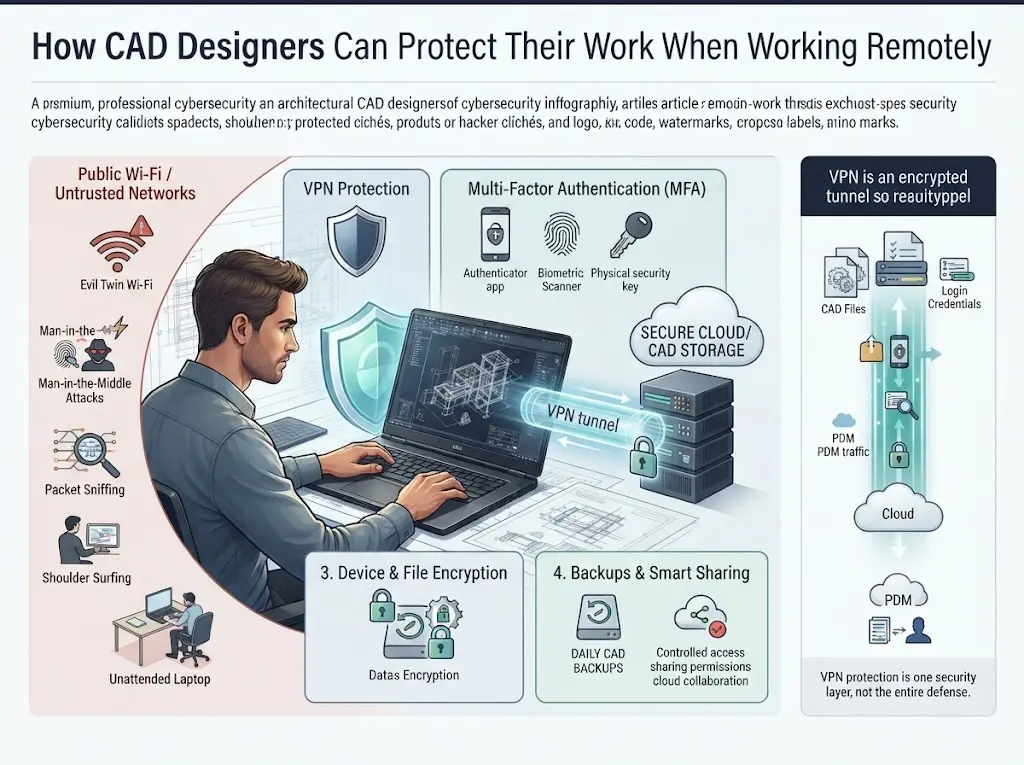
How CAD Designers Can Protect Their Work When Working Remotely
You are at an airport gate, finishing a revision on a client’s DWG file. The “Free Airport Wi-Fi” option looks tempting, and the upload is due in twenty minutes.
If you want to protect CAD files remotely, this is the moment that matters. Your drawings hold hundreds of hours of work, but the network you are using belongs to someone else.
The risk is real. In 2024, Australian police charged a man with running fake “evil twin” Wi-Fi networks at airports and on domestic flights to steal passengers’ logins, and he was later sentenced to prison in 2025.
This guide shows how CAD designers can keep their work safe with a secure remote connection, a VPN for remote work, and a few smart habits. You will find a threat table, a 7-point VPN checklist, a setup decision table, and a printable pre-flight list.
| Key takeaways
● Public networks are the weak point in remote CAD work. ● A VPN encrypts your connection, but it is one layer, not the whole defense. ● Match your setup (license, PDM, remote desktop) to the right kind of VPN. ● Combine layers: VPN protection, MFA, encryption, backups, and smart sharing. |
Why Remote CAD Work Is a Target for Data Theft
CAD file security is the practice of protecting design files, and the connections used to access them, from theft, tampering, and loss. It matters more when you work outside the office, because you control less of your environment.
Design files represent thousands of hours of work and a real competitive edge. Architecture, manufacturing, and product design firms all treat their drawings as intellectual property (IP).
CAD files are also large and shared often. They move through email, cloud drives, PDM systems, and chat tools such as Microsoft Teams and Slack, and every hop is another chance for something to go wrong.
The consequences add up fast: lost IP, broken NDAs, damaged client trust, and project delays after ransomware or data loss. Attackers usually want one of two things: either the designs themselves or the logins that unlock your cloud tools.
Think about a normal week. You might sync a model from a coworking space on Monday, review markups from a hotel on Wednesday, and send a revised DWG from a train on Friday. Each of those connections is a small decision about how much you trust the network.
| Quick Fact: One shared link with no expiry date can keep a whole project folder open long after the project ends. Reviewing links and permissions is a simple habit that closes that gap. |
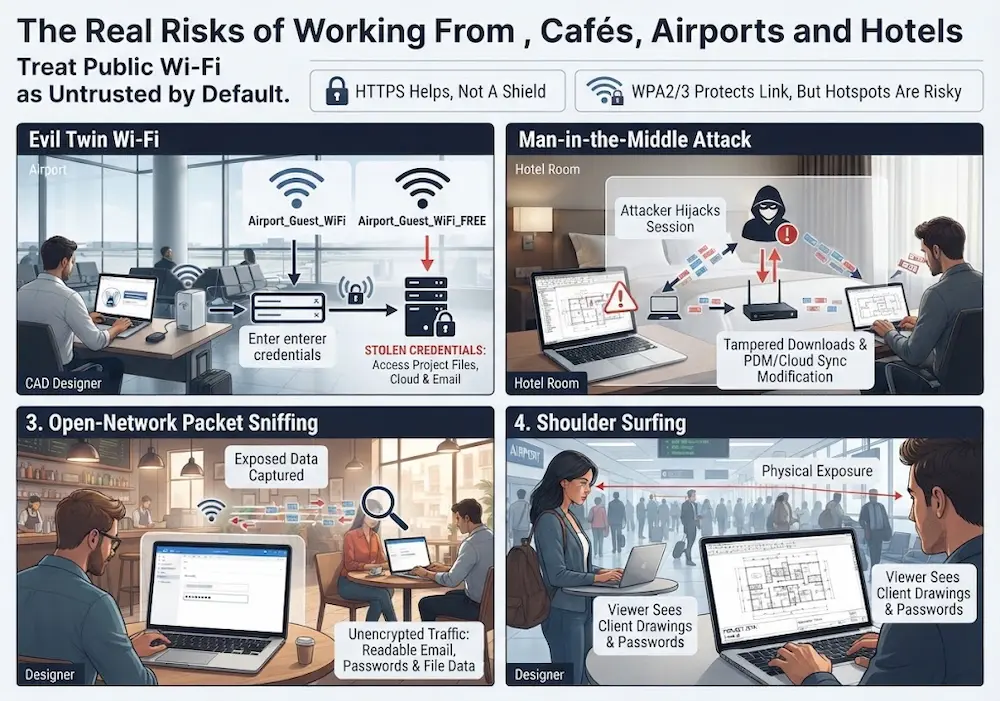
The Real Risks of Working From Cafés, Airports and Hotels
Public networks are shared spaces that you do not control. Anyone nearby can try to watch or tamper with your traffic, and a network name is easy to fake.
Evil Twin Wi-Fi
In an evil twin attack, a rogue hotspot copies a real network’s name so devices connect to it. CISA describes how the attacker then sits between you and the internet, so anything you send passes through their system.
Man-in-the-Middle Attacks and Packet Sniffing
On open or weakly protected networks, attackers can capture traffic as it passes by. That is called packet sniffing, and a man-in-the-middle (MITM) attack goes further by changing what you see.
Auto-Connect and File-Sharing Settings
Laptops often rejoin familiar network names on their own. Features like AirDrop and network discovery can also make your device visible to strangers.
Shoulder Surfing and Unattended Laptops
Some risks are physical. Someone can read your screen over your shoulder or walk off with a laptop you left for a coffee refill, and a VPN cannot fix either one.
| Threat | How it happens | What it means for CAD work |
| Evil twin Wi-Fi | A fake hotspot copies a real network name | Stolen cloud or email logins that unlock project files |
| Man-in-the-middle attack | An attacker sits between your laptop and the network | Tampered downloads or hijacked sessions during PDM and cloud sync |
| Open-network sniffing | Unencrypted traffic is captured on shared Wi-Fi | Readable email and file traffic when an app does not encrypt it |
| Shoulder surfing | Someone watches your screen or keyboard | Client drawings and passwords seen by strangers |
HTTPS helps, but it is not a complete shield. It does not cover every app, and a fake network can still lure you to a fake sign-in page. WPA2 and WPA3 protect the wireless link, yet many public hotspots are open or share one password with everyone.
Good remote CAD security does not mean avoiding every café. It means you treat public Wi-Fi as untrusted by default and add protection before you open project files. The next sections show how.
| Watch Out: Turn off auto-connect for public networks. Your laptop may join a look-alike network without asking, and you will not notice until something goes wrong. |
Use a VPN on Untrusted Networks: VPN Protection for CAD Professionals
When you are working from a café, airport, or hotel, Use a VPN on Untrusted Networks so your connection is encrypted before it reaches the local network. A VPN adds an extra layer of security by wrapping your traffic in encryption. Other people on the same Wi-Fi then see scrambled data instead of your files and logins.
What a VPN Does, in Plain English
A virtual private network (VPN) is an encrypted tunnel between your device and the internet. Without one, your data travels like a postcard that anyone on the café network could read. With one, it travels in a locked courier case.
A VPN also masks your IP address, which makes it a handy online privacy tool. It does not make you invisible, but it hides your traffic from the network you are sitting on.
Why a VPN for CAD Professionals Makes Sense
CAD work pushes a lot of sensitive traffic over whatever network is nearby. You upload large STEP or DWG files to cloud storage, check assemblies in and out of PDM, email drawings, join video design reviews, and let license servers check in.
Picture uploading a revised assembly from a hotel room. A VPN for remote work keeps that upload, and the login behind it, from crossing the hotel network in the clear.
Video calls and cloud collaboration tools such as Autodesk Docs, Google Drive and OneDrive also send account tokens and metadata. Encrypting the whole connection covers all of these tools at once, instead of relying on each app to do it right.
What VPN Protection Can’t Do
A VPN does not stop phishing, malware, weak passwords, or a stolen laptop. If the VPN drops and there is no kill switch, your traffic may fall back to the open network. That is why a VPN is one layer, and the section on more ways to protect your files covers the rest.
| A VPN helps protect against | A VPN does not protect against |
| Snooping on public Wi-Fi | Phishing emails and fake sign-in pages |
| Readable traffic on shared networks | Malware you download or install |
| Exposed IP addresses | Weak or reused passwords |
| Rogue hotspots reading your data | A lost or stolen laptop |
| Pro Tip: Turn on the kill switch. It blocks all traffic if the VPN connection drops, so your files never slip onto the open network. |
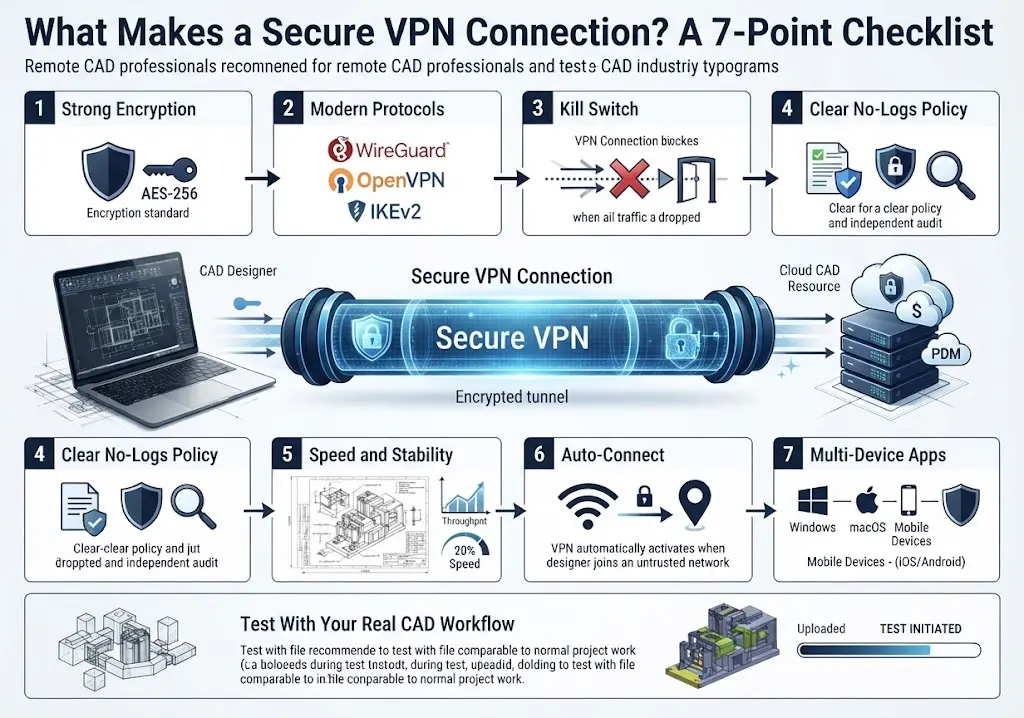
What Makes a Secure VPN Connection? A 7-Point Checklist
A secure VPN connection combines strong encryption, modern protocols, and safeguards that keep working when the network changes. Use these seven points to judge any VPN before it touches your remote CAD security routine.
- Strong encryption. Look for AES-256, a widely trusted standard for protecting data in transit.
- Modern protocols. WireGuard, OpenVPN, and IKEv2 are well-tested options that balance speed and security.
- Kill switch. It blocks traffic if the VPN drops, so files never travel unprotected.
- Clear no-logs policy. An independent audit is a good sign that the promise holds up.
- Speed and stability. Large CAD files need steady throughput, so test with a real upload.
- Auto-connect. The VPN should switch on by itself when you join an untrusted Wi-Fi network.
- Multi-device apps. Windows, macOS, and mobile apps keep protection consistent across your devices.
Be careful with free VPNs. Some fund themselves through ads or user data, which defeats the purpose of a privacy tool.
Also read the fine print on where the company is based, how it handles support, and what it says about logs. A short review of these points now saves frustration when a deadline is close.
| Pro Tip: During a trial or money-back window, upload a file the size of your typical assembly and time it. Real numbers beat marketing claims. |
Surfshark VPN: An Online Privacy Tool for Remote CAD Work
Surfshark VPN is one online privacy tool that covers the checklist above. It is popular with people who use several devices and want a secure VPN connection without much setup.
As of 2026, Surfshark VPN reports 4,500+ servers in 100 countries and a 30-day money-back guarantee. Independent reviewers also note that its no-logs policy was audited by Deloitte in 2023 and 2025.
- Strong encryption: AES-256-GCM, with WireGuard connections using the ChaCha20 cipher.
- Protocols: WireGuard, OpenVPN, and IKEv2.
- Kill switch and auto-connect: block traffic if the tunnel drops and switch on for networks you mark as untrusted.
- Bypasser: split tunneling that lets chosen apps skip the VPN.
- MultiHop and CleanWeb: a two-server route plus an ad and tracker blocker.
- Unlimited devices: apps for Windows, macOS, Linux, iOS and Android.
Get started in four steps:
- Install the app on your work laptop. If it is company-managed, check with IT first.
- Turn on the kill switch.
- Set auto-connect for untrusted Wi-Fi.
- Choose WireGuard, then test upload speed with a typical CAD file.
For CAD work, auto-connect and the kill switch matter most. They mean you do not have to remember to turn protection on each time you join hotel or airport Wi-Fi, which is when mistakes usually happen.
No VPN is perfect, and speeds vary by server and location. Try Surfshark VPN during the money-back window with your real workflow, and use Bypasser only if your IT team agrees.
| Quick Fact: Surfshark lists a kill switch, WireGuard and unlimited simultaneous connections on its official VPN page. Confirm current features and guarantee terms there before you buy. |
Getting a Secure Remote Connection Right: Company VPNs, PDM and Licenses
A personal VPN protects you on untrusted Wi-Fi. A company VPN or remote desktop connects you to your firm’s network. Many designers need to know which one applies to them.
Floating (network) licenses and on-premises PDM often require a company-approved VPN to reach the office. VPNs add latency, though. Javelin Technologies warns that SOLIDWORKS PDM tends to throw occasional errors above about 100 ms of latency and becomes unusable above roughly 200 ms.
In those cases, resellers point to remote desktop, PDM offline mode or license borrowing. Always follow your employer’s IT policy, and ask before running two VPNs at once.
Freelancers have a different job. Client systems come with their own access rules, so use the client’s method for project files and keep your personal VPN for everything else you do on public Wi-Fi.
| Which setup are you? | Best approach | Use a personal VPN? |
| Cloud CAD or online license, personal files | Connect directly over HTTPS with MFA on | Yes, on public Wi-Fi |
| Floating license and on-premises PDM | Company VPN, or remote desktop to your office workstation | Ask IT about layering |
| Remote desktop into an office workstation | Secure remote connection with MFA | Only if IT approves |
| Freelancer on client systems | Follow the client’s access rules | Yes, for everything else on public Wi-Fi |
| Watch Out: Two VPNs at once can clash. They may fight over network routes or interrupt license checks, so get IT approval first. |
8 More Ways to Protect Your CAD Files When Working Remotely
To protect CAD files when working remotely, use a VPN on untrusted networks, turn on multi-factor authentication, encrypt your device, store files in a managed PDM or cloud platform, back up regularly, share files carefully, update software, and avoid public Wi-Fi when you can. Here is how to do each one.
1. Turn On MFA and Use a Password Manager
Multi-factor authentication (MFA) adds a second proof of identity, such as a phone prompt. Pair it with a password manager so every account has a unique password.
2. Encrypt Your Laptop and Drives
Full-disk encryption, such as BitLocker on Windows or FileVault on macOS, keeps files unreadable if your laptop is lost or stolen.
3. Use PDM or CAD-Aware Cloud Storage
Tools like SOLIDWORKS PDM, Autodesk Vault, or Autodesk Docs add version control and permissions that plain file syncing lacks.
4. Back Up With the 3-2-1 Rule
Keep three copies on two types of media, with one stored off-site, and test your restores. A backup you have never restored is only a guess.
5. Share Smart
Send read-only files, PDFs, or screen shares instead of native files when you can. Add watermarks to drafts and use NDAs on sensitive projects.
6. Apply Least-Privilege Access
Give people only the access they need, use expiring links, and remove access when a project ends.
7. Update Software and Turn Off Sharing
Keep your operating system and CAD software current. Switch off file sharing and AirDrop on public networks.
8. Use a Hotspot and Protect Your Screen
A phone hotspot is usually harder to intercept than open Wi-Fi. Add a privacy screen, lock your screen when you step away, and never leave the laptop alone.
| Pro Tip: Use your phone’s hotspot when you can. It gives you a private connection to start from, and a VPN can still sit on top of it. |
Your Pre-Flight Checklist for Working From a Public Place
Run through this list before you open a single project file. It takes about two minutes.
| ☐ Laptop updated and encrypted
☐ MFA enabled on cloud, email, and CAD accounts ☐ VPN installed, kill switch on, auto-connect set ☐ Exact network name confirmed with staff ☐ File sharing and AirDrop turned off ☐ Only the needed project files on the device ☐ Privacy screen and screen lock ready ☐ Phone hotspot available as a backup ☐ Logged out and forgot the network when finished |
Save or print this list and keep it in your laptop bag.
Frequently Asked Questions
Is Public Wi-Fi Safe for CAD Work?
Not by default. Open networks can be watched or spoofed. It is safer with VPN protection, HTTPS, MFA, and updated software, but a phone hotspot is lower risk when you have one.
Do I Need a VPN for CAD Software?
CAD software itself does not require one. A VPN for CAD professionals protects the connection when you upload, download, or sync files over untrusted Wi-Fi. Company systems may also require a company VPN.
Will a VPN Slow Down Large CAD File Uploads?
It can, a little. A VPN adds some latency and overhead, and modern protocols like WireGuard help. Test with a typical file, and ask IT about alternatives if on-premises PDM struggles over VPN.
Can I Use a Personal VPN With My Company VPN?
Sometimes, but conflicts can happen. Ask IT first. Use the company VPN for work systems and a personal VPN for general protection on public Wi-Fi where policy allows.
How Do I Share CAD Files Securely With Clients?
Use managed platforms with access controls. Choose expiring links and permissions, share read-only or PDF versions where possible, watermark drafts, use NDAs, and avoid unencrypted email attachments.
Is Surfshark VPN Good for Remote Work?
It suits many remote workers. Reviewers note strong encryption, a kill switch, WireGuard support, and unlimited devices. Try it with your real workflow during the money-back period, and confirm it fits your employer’s policy.
Stay Productive Anywhere Without Risking Your Designs
To protect CAD files remotely, think in layers: a VPN for remote work, strong sign-in, encryption, backups, and careful sharing. Each layer supports a secure remote connection that keeps client work private. The biggest risk is still the untrusted network, so start there.
Secure Your CAD Files Before Your Next Remote Session!
|
If you regularly work from public spaces, Use a VPN on Untrusted Networks and make it part of your routine. |