

Top 10 CAD Automation Scripts and How They Help Save Hundreds Of Drafting Hours
We’ve all been there. It’s 4:00 PM on a Friday. The design is finally locked. Your coffee has gone cold, your eyes are burning from staring at the dark mode crosshairs, and all that stands between you and the weekend is updating the revision dates on 150 different title blocks.
Manual drafting is a highly skilled art. But manual data entry? That’s just a tax on your firm’s profitability and a drain on your sanity.
At CAD Drafter, we eat, sleep, and breathe construction CAD and BIM drafting. We’ve seen the inside of hundreds of project workflows, from massive commercial high-rises to boutique residential developments. Over the years, we’ve learned a hard truth: the drafting firms that scale successfully aren’t necessarily working harder, and they aren’t hiring armies of junior drafters to do grunt work. They’re just automating the boring stuff.
If you want to stop acting like a human typewriter and start operating like a modern BIM professional, you need to script your CAD automation workflows. Here are 10 CAD automation scripts that will instantly save you hundreds of drafting hours.
1. The “Batch Plot and PDF Exporter” Routine
Printing shouldn’t be a full-time job. Yet, in many firms, a junior drafter will lose an entire afternoon doing nothing but opening files, hitting CTRL+P, waiting for the dialogue box to load, selecting a window, and saving a PDF.
Now, imagine doing that for a 200-sheet submittal. The sheer mind-numbing repetition is where human error thrives. You accidentally print one sheet in monochrome instead of grayscale, or you misname a file, and suddenly the document controller is rejecting your entire package.
The Automation Fix
Instead of opening individual .dwg or .rvt files, a batch plotting script (often written in AutoLISP for AutoCAD or Python using the pyRevit API) bypasses the graphical interface entirely.
You run the script, and it prompts you to select a directory. The script then silently accesses every file in that folder. It reads your pre-defined page setups (ensuring the paper size and plot style tables like .ctb or .stb are perfect).
But the real magic is the naming convention. A smart export script pulls metadata directly from the file. It can grab the Project Number, the Sheet Number, and the Revision Code, stitching them together to name the output file flawlessly: 2026-Project-Name_A101_Rev02.pdf.
- The Before: 3 hours of opening, plotting, saving, and renaming.
- The After: 2 minutes to run the script. You hit enter, walk away to grab a fresh coffee, and come back to a perfectly named, collated PDF set.
2. Dynamic Auto-Numbering (Rooms, Doors, and Parking Bays)
Numbering elements is the bane of the architectural drafter’s existence. Let’s say you are drafting a massive commercial parking lot. You painstakingly number 400 parking bays. Then, the local municipality reviews the site plan and mandates that you need to add two accessible parking spots right in the middle of row B.
In a manual workflow, your heart sinks. Adding those two spots means everything from bay 45 to 400 now needs to be manually edited and shifted by two numbers. It is a terrifying waste of billable hours.
The Automation Fix
This is where Dynamo for Revit (or AutoLISP in AutoCAD) absolutely shines. A sequential numbering script fundamentally changes how you manage revision and RFIs.
Instead of double-clicking text, you run an auto-number script. The tool prompts you to draw a spline (a continuous curved line) through your elements. You zig-zag this line through your parking bays, doors, or room tags. The script’s logic is simple but brilliant: it calculates the geometric intersection between your drawn line and the specific object category.
It reads the line from start to finish. The first door the line touches becomes “D-01”. The second becomes “D-02”, and so on. If the architect adds a door, you don’t manually rename anything. You just redraw the spline, run the script, and the entire building is renumbered in four seconds flat.
| Pro Tip for BIM |
| In Revit, these scripts don’t just change a text note; they write the data directly into the element’s identity data parameters. This means your door schedules instantly update to match the floor plan perfectly. |
3. The Global Title Block Attribute Pumper
Project managers are notorious for changing their minds at the eleventh hour. The project was called “Riverside Heights”, but the developer just rebranded it to “The Pinnacle at Riverside”. The deadline is in two hours, and that project name is embedded in the title block of 85 different drawings.
If you aren’t using Sheet Set Manager (and let’s be honest, many firms still struggle with implementing SSM properly), updating title block attributes across dozens of discrete files is a nightmare. Opening each file to edit a block attribute takes a minute per sheet. That’s an hour and a half of pure panic.

The Automation Fix
A global attribute editor script is your best defense against late-stage metadata changes. These scripts utilize object selection sets (like the ssget function in LISP) to aggressively target specific blocks across multiple closed files.
You open a clean interface built by the script. You tell it: “Look in this folder. Find a block named ‘A-TITLEBLOCK’. Find the attribute tag called ‘PROJECT_NAME’. Change the string value from ‘Riverside Heights’ to ‘The Pinnacle at Riverside’.”
The script operates in the background using ObjectDBX (in AutoCAD environments), which allows it to read and write to drawing databases without actually opening the files in the graphical editor. It sweeps through 85 files, injects the new text string, saves, and closes them.
The entire process takes less than thirty seconds. No missed sheets. No typos on sheet A-504. Just absolute consistency.
Get expert CAD & BIM solutions today
4. The Deep-Clean Layer and Purge Protocol
If you do construction drafting, you rarely work in a vacuum. You are constantly referencing files from external consultants, surveyors, MEP engineers, and landscape architects.
You receive a background .dwg and open the layer manager, only to be hit with 600 randomly named layers.
You have A-WALL, A-WALL-NEW, A-WALL-NEW-FINAL, and Bob-Walls-Do-Not-Delete. These bloated, messy files slow down your software, increase the likelihood of fatal crashes, and completely ruin your firm’s internal drafting standards.
The Automation Fix
The standard PURGE command is okay, but it only scratches the surface. It won’t delete layers that have a single, invisible rogue pixel sitting 500 miles away from the origin point.
A comprehensive cleanup script does the heavy lifting of CAD hygiene. Here is what a robust, automated clean-up routine actually does behind the scenes:
- Unlocks and Thaws: It ensures no data is hiding on locked or frozen layers.
- Layer Translation: It references a master dictionary. It finds “Bob-Walls” and automatically maps the linework to your company’s standard (e.g., the AIA standard A-WALL-FULL).
- Recursive Purging: It runs a deep purge multiple times, stripping out unreferenced nested blocks, orphan DGN linetypes, and unused annotation scales that bloat file sizes.
- Audit and Fix: It runs a silent database AUDIT to repair minor corruptions before they become fatal errors.
- Flatten: It automatically flattens rogue Z-axis coordinates so your 2D plans are actually 2D, preventing those frustrating snapping errors where lines won’t trim or fillet.
By automating file intake, a drafter can drag a chaotic consultant file into the software, run one command, and instantly transform it into a lightweight, standardized background file ready for xref.
5. Automated Dimensioning Grids
Dimensioning structural grids, curtain wall mullions, or repetitive floor plans manually is tedious, exhausting, and highly prone to human error.
If you accidentally snap to a line’s midpoint instead of its endpoint, your dimensions are suddenly off by 3/16ths of an inch. In construction, that tiny error cascades into massive on-site headaches. Manual dimensioning is one of the most time-consuming aspects of creating construction documents.
The Automation Fix
Why snap to lines manually when the software already knows where the lines are? Dimensioning automation scripts analyze the geometry within a specified bounding box. Let’s take structural grids as an example. Instead of placing 20 individual linear dimensions between grid bubbles, a drafter triggers the script and selects the grid lines.
Just like algorithmic drafting, the code analyzes the intersections. It automatically creates a continuous, aligned dimension string, spacing the text perfectly to avoid overlaps.
In BIM environments like Revit, this goes a step further. Scripts can be programmed to look for specific element types.
You can tell a Dynamo graph: “Find all the walls of type ‘Interior Partition 4-7/8 ‘. Draw a dimension line that passes through them, and automatically snap the dimension witness lines to the center of the wall cores.”
It takes a task that would consume twenty minutes of meticulous clicking and zooming and reduces it to a single click. Furthermore, because the script pulls coordinates directly from the object geometry, the mathematical accuracy is guaranteed to be flawless.
6. Automated BOM (Bill of Materials) and Schedule Extraction
In the old days of CAD drafting, “counting” was a legitimate line item on a project budget. A junior drafter would sit with a highlighter (digital or physical) and count every sink, every fire extinguisher, and every Type-B window frame. It was a recipe for disaster. If you missed three door closers on a 50-story hotel, that’s a change order that eats directly into the firm’s margin.
The Automation Fix
Modern BIM and advanced CAD blocks aren’t just shapes; they are containers for data. An automated extraction script (using DATAEXTRACTION in AutoCAD or a Schedule-to-Excel node in Dynamo) acts as a vacuum.
Instead of manual tallies, the script crawls the entire model database. It identifies every instance of a specific block or family and reads its “attributes” or “parameters.” It doesn’t just count them; it categorizes them. It can distinguish between a 30″ wood door and a 30″ steel door based on the data embedded within the object.
The script then formats this data and pushes it directly into a pre-formatted Excel template. If you use a bi-directional script, you can actually edit the door hardware in Excel (which is much faster for data entry) and “push” those changes back into the CAD file.
| The Special Perk |
| 100% mathematical accuracy. You aren’t “counting” anymore; you’re simply auditing the data that is already there. |
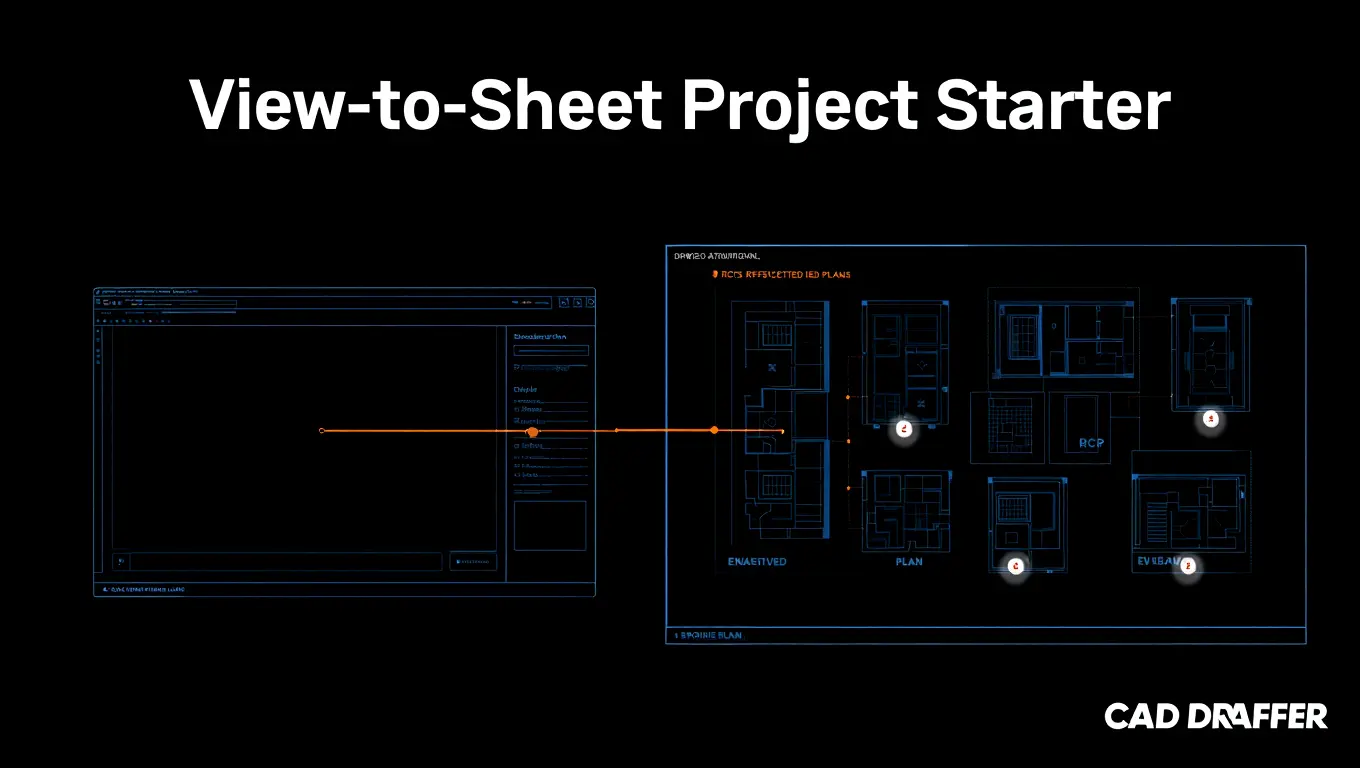
7. The View-to-Sheet Project Starter
Starting a new project often feels like setting the table for a 12-course meal. You have to create the Floor Plan views, the Reflected Ceiling Plans, the Enlarged Restroom Plans, and the Elevations. Then, you have to create the sheets, name them according to the BIM Execution Plan, and manually drag each view onto each sheet, centering them and adjusting the viewports.
This “setup” phase can easily swallow the first 8 to 16 hours of a project before a single line of actual design is drawn.
The Automation Fix
This is where high-level BIM automation (specifically Python for Revit) becomes a superpower. You start with a simple CSV or Excel file containing your sheet list:
- A101 | Level 1 Floor Plan | 1/8″ Scale
- A102 | Level 2 Floor Plan | 1/8″ Scale
The script reads this list and minimizes common CAD drafting mistakes. It creates the sheets in the project browser, generates the views based on the specified levels, applies the correct View Templates (so the layers and colors are already set), and places the view on the sheet in a standardized location.
| The Special Perk |
| You go from a blank file to a fully structured project set in under 60 seconds. |
8. The Text Case and Font Standardizer
Inconsistent notation is the hallmark of a disorganized drafting team. When one drafter uses “Sentence case” for notes and another uses “ALL CAPS,” the final drawing set looks like a patchwork quilt. Manually editing hundreds of text strings to match company standards is the definition of “non-value-added labor.”
The Automation Fix
A Global Text Formatter script is a simple LISP or Python routine that acts as a universal editor. It scans every text object, MText, and attribute in the drawing. With one command, it can:
- Force all text to UPPERCASE (the construction industry standard).
- Change all fonts to a specific .shx or TrueType font to ensure readability.
- Adjust the “width factor” of text that is spilling out of its designated box.
It’s a polishing script. It ensures that regardless of who worked on the file, the final output looks like it came from a single, disciplined hand.
9. Smart Clash Detection and “Ghost” Reporting
In the BIM world, Navisworks is usually the judge, jury, and executioner for clashes. It tells you that a 4-inch plumbing line is running through a steel beam. But the problem is getting that information back to the drafter who needs to fix it. Usually, this involves a PDF report with screenshots that the drafter has to “hunt and find” in their own model.
The Automation Fix
Smart scripts can bridge the gap between Navisworks and Revit/AutoCAD. An automation script can take the XML or HTML clash report and “inject” those coordinates back into the original drafting software.
The script places a “clash marker” (usually a bright red 3D sphere) at the exact XYZ coordinate of the interference. The drafter doesn’t have to look at a PDF. They just see a red ball in their 3D view, move the pipe, and delete the marker. As a result, the coordination phase of a project is shortened by weeks.
10. The Standardized Block/Family Replacer
Design is iterative. Late in the game, a client might decide to switch from a specific lighting fixture to a different model. If that fixture appears 400 times across four floors, replacing them manually is a nightmare. You have to delete the old one, insert the new one, rotate it, and move it to the exact same spot.
The Automation Fix
A Swap script is an essential tool for any CAD manager. It allows you to select a “Source” block and a Destination block. The script identifies every insertion point, rotation angle, and scale factor of the old block. It then deletes the old block and places the new one in the exact same orientation.
If you are working in BIM, this script can also map the parameters from the old family to the new one, ensuring that the circuiting and flow data isn’t lost during the swap.
Conclusion
At CAD Drafter, we don’t view automation as a way to replace the drafter. We view it as a way to liberate the drafter. Construction is getting faster, more complex, and more demanding. To keep up, we have to move away from the manual labor of drawing lines and move toward the management of data.
By implementing these 10 scripts, a firm can effectively double its output without doubling its staff. It allows your team to focus on what they were trained for: solving complex construction problems, ensuring code compliance, and creating beautiful, functional designs.
The clock is ticking. Don’t spend your career clicking the same button 500 times. Script it, automate it, and get back to the work that matters.
Frequently Asked Questions (FAQs)
1. Do I need to be a programmer to use these scripts?
Not necessarily. While writing them requires knowledge of AutoLISP, Python, or C#, using them is usually as simple as typing a command or clicking a button. Many pre-written scripts are available in the CAD community, or you can hire a specialist to build a custom toolkit for your firm.
2. Can these scripts work in both AutoCAD and Revit?
Yes, though the “language” is different. AutoCAD primarily uses AutoLISP or VBA, while Revit relies heavily on Dynamo (visual programming) and Python (via the Revit API). The logic of the automation remains the same regardless of the platform.
3. Will automation make my files more prone to crashing?
Actually, the opposite is true. Most automation scripts (like the “Deep Clean” routine) are designed to remove the “junk” data and corruption that cause crashes. A scripted workflow is generally much “cleaner” than a manual one.
4. How much time can I actually save?
On a standard commercial project, we’ve found that automation can reduce “production” time (sheet setup, renumbering, plotting, and scheduling) by as much as 70%. This allows more time for the actual design and coordination phases.
5. Is it expensive to implement CAD automation?
The initial investment is usually in time, learning the tools or setting up the scripts. However, the ROI (Return on Investment) is almost immediate. If a script saves a $50/hour drafter just two hours a week, it pays for itself in less than a month.

