
How to Fix CAD Version Control Conflicts With Ease
Ever wondered if your MEP team pushed a critical routing update for the HVAC system, but the architectural team synced their structural changes at the exact same millisecond, what would happen? The central model will lock up, and panic will set in. Most of the time, a dreaded error message pops up, effectively telling you that hours of meticulous LOD 400 detailing might be trapped in the digital ether.
CAD version control conflicts are a financial hemorrhage. When multiple disciplines are hammering away on complex Building Information Modeling (BIM) projects, file collisions are inevitable. But how you handle that collision dictates whether you lose five minutes or five days of work.
Standard software developers have it easy. They use Git. Git compares text files, highlights the exact line of code that conflicts, and lets the developer manually merge them. We don’t have that luxury. BIM and CAD files are massive, proprietary binary databases. You can’t just open a .rvt file in Notepad and figure out where the structural steel clashed with the ductwork on line 4,092. The software either reads the database or it corrupts.
With that being said, here is the unfiltered, zero-fluff guide to diagnosing, untangling, and permanently fixing version control conflicts in high-stakes CAD environments.
The Anatomy of a Sync Failure
Before you start clicking wildly to recover your data, you need to understand the beast you are fighting. CAD conflicts rarely happen because the software just “glitched.” They occur because of competing operational logic.
Usually, the breakdown happens in one of three ways:
● The Element Lockout
Drafter A owns a specific workset, say, the second-floor plumbing fixtures. Drafter B tries to move a wall that hosts one of those fixtures. The software panics. Drafter B can’t move the wall because they don’t own the plumbing, and Drafter A hasn’t synced to release the element.
● The Ghost XREF
A linked file (an external reference) was moved, renamed, or overwritten by someone working directly on the server instead of through the Common Data Environment (CDE). Suddenly, the master file is looking for data that no longer exists, causing a fatal crash upon opening.
● The Simultaneous Sync (The Fatal Collision)
Two users attempt to write data to the central model at the precise same moment over a lagging network connection. The central database receives fragmented instructions, resulting in a corrupted save state.
Triage: Stopping the Bleeding
When the conflict notification hits your screen, stop. Do not hit “Cancel.” Do not force-quit via the Task Manager. And for the love of everything, do not immediately try to sync again.
Step 1: Communicate Instantly
The absolute first rule of a central file conflict is freezing the environment. Get on Teams, Slack, or physically yell across the office: “Nobody sync! I have a central model error.” If other drafters continue to push changes to a conflicting model, you will compound the corruption, layering bad data over bad data.
Step 2: Identify the Culprit via Worksharing Monitors
Open your worksharing monitor. You need to see exactly who is currently connected to the central file. Find out who initiated the last successful sync and whose sync is currently hanging. If the software tells you a specific element is locked, note the Element ID. That string of numbers is your golden ticket. You can use the “Select by ID” function later to find the exact pipe, wall, or annotation causing the system-wide aneurysm.
Step 3: Save Local, Isolate, and Detach
If your software allows it, save a local copy immediately. Do not attempt to push it to the server. You are simply creating a life raft for your latest changes.
What Is The Surgical Fix
Okay, the bleeding has stopped. Now it’s time to operate. If the central file is completely borked and refuses all sync requests, you have to execute a controlled reset. This isn’t just about restoring a backup; it’s about preserving the delta, the work done between the last good save and the crash.
. The “Detach from Central” Maneuver
Have the BIM manager (or the most senior drafter) open the central file, but check the boxes for Detach from Central and Audit. The Audit function is critical. It forces the software to scan the binary database and strip out orphaned data fragments that caused the crash.
2. Relinquish Everything
Once the detached model opens, navigate to the worksets dialogue. You need to forcefully relinquish all mineable elements. Strip ownership from every user. This resets the permissions matrix entirely.
3. Purge the Unused (Ruthlessly)
Before saving this newly cleaned file back over the central model, run the purge command. Often, conflicts are caused by deeply embedded, corrupted families or blocks that aren’t even actively modeled in space. Get rid of them.
4. The Delta Re-Integration
Save this clean, audited, relinquished file as the new central model. Have everyone pull a fresh local copy. Now, what about the lost work?
Remember those local saves you made everyone do during triage? Users can open their isolated local files side-by-side with the new central model. Using copy/paste aligned to the current view (or similar insert functions), they can manually push their isolated changes back into the clean environment. Yes, it is tedious. But it is entirely foolproof and guarantees you aren’t importing the corrupted metadata back into the fresh central file.
Advanced Conflict Scenarios
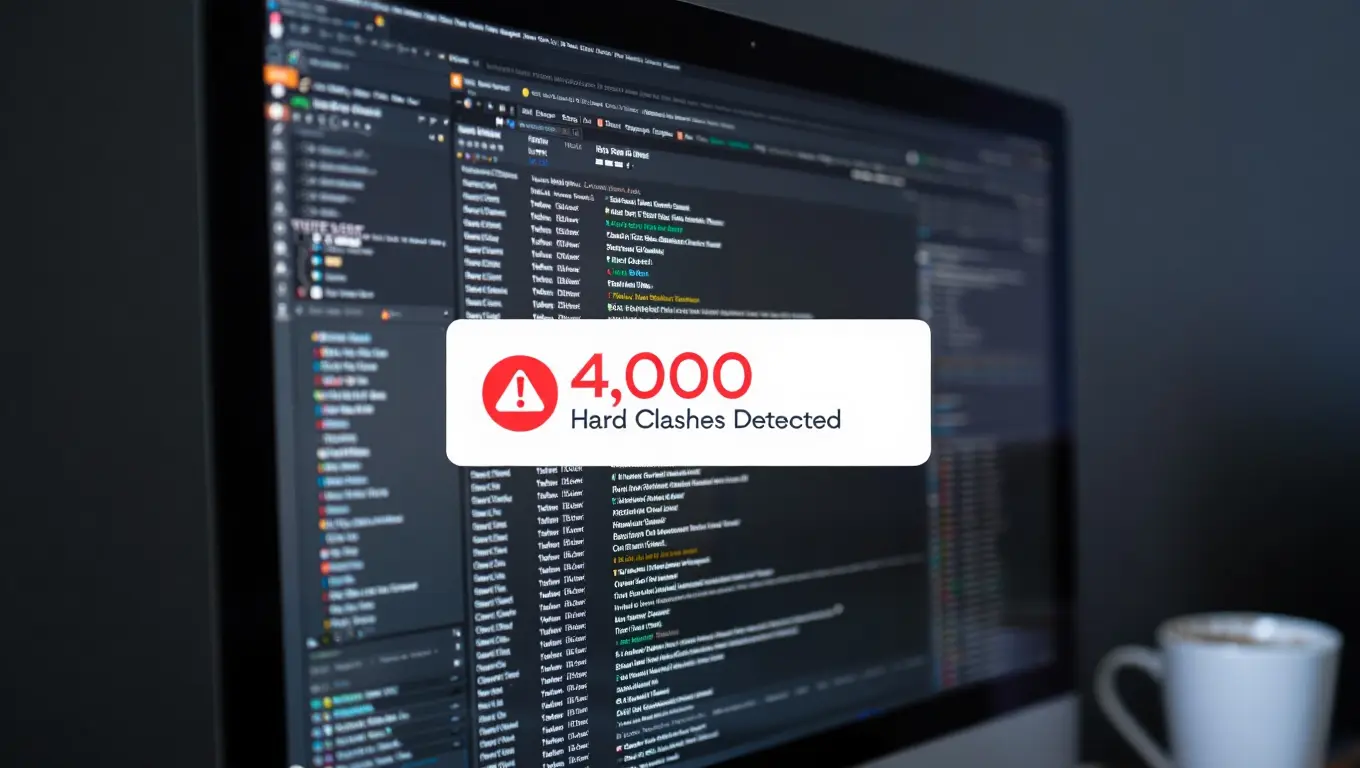
Sometimes the “conflict” isn’t a file save error, but a massive coordination failure discovered during an aggregate model review. You dump the structural and MEP models into Navisworks, run a clash test, and get 4,000 hard clashes.
This is a common CAD drafting mistake masquerading as a design issue. It means your teams are working in silos and referencing outdated backgrounds. To fix this, you have to standardize the update cadence.
● Establish a Rigid Publishing Schedule
MEP does not link live architectural files. Ever. That is a recipe for disaster. Architecture should publish a static background model every Tuesday and Thursday at noon. MEP links that static file. It prevents the model from shifting underneath the mechanical drafter’s feet while they are trying to route a complex chilled water system.
● Use Navisworks SwitchBack
When a legitimate spatial conflict is found, don’t rely on screenshots and markups. Utilize the SwitchBack feature to jump directly from the Navisworks clash interface to the exact element in the native authoring tool. It eliminates the guesswork and ensures the drafter is fixing the specific version of the element that caused the problem.
Proper CDE Management
Fixing a conflict is satisfying, but avoiding one makes you profitable. The ultimate fix for CAD version control is establishing an ironclad Common Data Environment (CDE) protocol.
The Golden Rules of CDE Management:
1. Never Rename Linked Files
If you are updating a background XREF, overwrite the existing file with the exact same naming convention. Appending “_V2” or “_Final_FINAL” breaks the file path for everyone else in the project. Use your document management system (like BIM 360 or ProjectWise) to track the version history behind the scenes. Leave the visible file name alone.
2. Granular Worksets
Don’t just dump the whole building into “Workset 1.” Break the model down logically. Exterior shell, interior partitions, plumbing, HVAC supply, and HVAC return. The more granular the worksets, the less likely two people are to need ownership of the same sector simultaneously.
3. Mandatory Sync Cadence
Institute a rule. Sync every 45 minutes, no matter what. And never leave the office with elements checked out. If a drafter goes on vacation for a week while holding ownership of the main electrical room workset, they will paralyze the entire team until an admin forces a relinquishment.
Version control in CAD isn’t just an IT problem. It is a workflow discipline. The software will only ever be as stable as the protocols of the people using it.
Get expert CAD & BIM solutions today!
Syncing Across the Void
In the era of distributed teams, the “Local Area Network” is a relic. You might have a lead drafter in San Diego, a MEP coordinator in Chicago, and a structural engineer working from a home office in Austin. This creates a massive hurdle for CAD version control: Latency. When you hit ‘Sync’ on a 400MB Revit file over a standard VPN, you aren’t just sending data; you are playing a high-stakes game of telephone with a binary database. If the connection blips for a fraction of a second, the central model sees a “partial write.” This is the digital equivalent of a heart attack. The file headers mismatch, the pointers break, and suddenly, the “Central Model is Inaccessible” error ruins everyone’s morning.
To fix this, stop relying on raw VPNs for heavy CAD lifting. You need a Global File Cache or a cloud-based CAD collaborative environment like Autodesk Construction Cloud (formerly BIM 360) or Bentley ProjectWise. These tools don’t just “upload” the file; they manage the delta. Instead of pushing 400MB, they push the 2MB of actual changes you made to that specific duct run.
The Delta-Only Strategy
If you are forced to work on a legacy server without cloud acceleration, implement a “Staggered Sync” protocol. Use a shared group chat.
- User A: “Syncing now.”
- User B: “Acknowledged. Waiting.”
- User A: “Sync complete. All clear.”
It sounds primitive. It feels like 1998. But it prevents the packet collisions that lead to corrupted central files and hours of “Audit and Repair” downtime.
The “Element ID” Investigation
When the software tells you that “User X cannot edit Element 1029485 because User Y has it checked out,” don’t guess.
Every single entity in a CAD database (from a massive concrete slab to a tiny 1/2-inch bolt) has a unique, persistent Element ID. In Revit, go to Manage > Inquiry > Select by ID. Paste that number. The software will zoom you directly to the offending object.
Often, the conflict isn’t even a physical object. It’s a View. If two people are trying to adjust the crop region of the “Level 1 Floor Plan” simultaneously, the software treats it as a conflict.
- Create “User-Specific Working Views.” Never do your actual drafting in the “Master” sheets. Create a view titled “WORKING_JohnD” and do your mess there. Only move to the master sheets for final annotation. This keeps the version control overhead light and prevents users from stepping on each other’s toes in the metadata.
The Architecture of a Fail-Proof Backup
If you are a CAD manager, your job isn’t just fixing crashes; it’s ensuring that a crash is a minor speed bump rather than a brick wall. Most firms rely on the software’s built-in “.bak” or “SLOG” CAD files. That is not a strategy; that is a prayer.
The 3-2-1 Rule for CAD Data
- 3 Copies of the Data: The live Central Model, a daily local archive, and a cloud-based backup.
- 2 Different Media: One on the production server (SSD/NVMe) and one on a separate storage array or NAS.
- 1 Offsite Copy: A mirrored version of your server in a completely different geographic location.
Shadow Copies:
Enable “Windows Shadow Copies” on your file server. Set it to trigger every two hours. If a central file corrupts at 3:00 PM, you don’t have to revert to yesterday’s backup and lose eight hours of billable time for the whole team. You can roll back to the 2:00 PM “Shadow Copy” and only lose 60 minutes. In a 10-person firm, that’s a saving of $1,500 in lost labor in a single click.
Software-Specific Ghost Hunting: AutoCAD vs. Revit vs. Civil 3D
Every software handles versioning differently, and their “ghosts” require different exorcisms.
1. AutoCAD: The XREF Nightmare
In AutoCAD, version control usually fails because of “Circular References.” User A links File B. User B links File A. The software enters an infinite loop trying to resolve the paths, leading to a “Drawing File is Protected” error.
- The Fix: Use Overlay instead of Attachment for your XREFs. An “Attachment” carries its baggage with it wherever it goes. An “Overlay” stays put. It tells AutoCAD: “Show me this file here, but don’t try to push it into any other files that link to me.”
2. Civil 3D: Data Shortcuts (DREF)
Civil 3D is notorious for “broken links” in surfaces or pipe networks. When the source file is updated, the consumer file often fails to sync the changes.
Use the Data Shortcuts Editor (a standalone tool often ignored). It allows you to batch-repair paths without even opening the heavy DWG files. It’s surgical, fast, and prevents the “Validate All Shortcuts” hang that occurs in the main UI.
3. Revit: The Workset “Borrowing” Trap
Revit allows you to “borrow” elements without checking out a whole workset. This is great until it isn’t. If you move a wall, you might accidentally “borrow” 50 dimensions attached to it.
- Periodically use the “Relinquish All Mine” Don’t wait for the sync. If you are going to lunch, relinquish. If you are taking a phone call, relinquish. Keeping your “ownership” footprint small is the best way to avoid being the person who freezes the project.
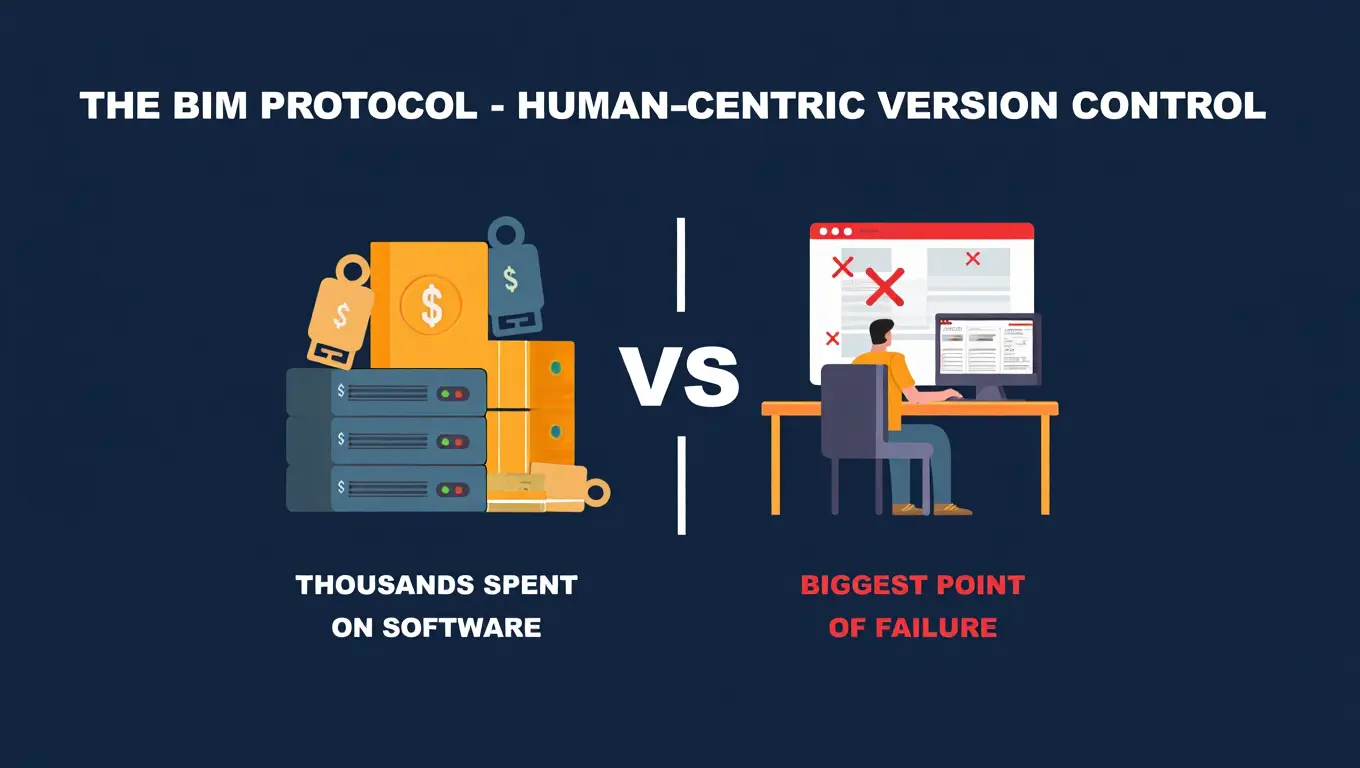
Human-Centric Version Control: The “BIM Protocol”
We spend thousands on software, but the biggest point of failure in CAD version control is the person sitting between the chair and the keyboard.
The “Friday Clean” Ritual
Every Friday, 30 minutes before clock-out, the team should perform a “Project Audit.”
- Open with Audit: Check the database for integrity.
- Delete Orphaned Views: If it’s a temporary section that hasn’t been touched in three days, kill it.
- Check the Warnings: In Revit, a high warning count (over 500) significantly increases the chance of a sync conflict. These warnings (overlapping lines, slightly off-axis elements) are the friction that slows down the database. Clear them out.
The “Drafting Standard” as a Shield
If your naming conventions are chaotic, your version control will be chaotic. Use the ISO 19650 standard or a modified version of it. When every file, layer, and family is named predictably, the software’s search and indexing functions work faster. Less indexing time means faster syncs. Faster syncs mean fewer collisions.
Real-Time Multi-User Authoring
We are moving toward a world where “Syncing” becomes obsolete. Tools like NVIDIA Omniverse or the new cloud-native engines are moving toward Live Syncing. Imagine a Google Doc, but for a 3D building model. Changes happen in real-time across the USD (Universal Scene Description) format.
Until that becomes the industry standard, we are stuck with the “Push/Pull” mechanics of legacy CAD. And that means being a student of the database. You aren’t just a designer; you are a data steward. Every time you save, you are interacting with a complex web of dependencies. Respect the web, follow the protocols, and you’ll never have to explain to a client why their project is delayed because of a “corrupted file.”
The Bottom Line
Before you declare the conflict resolved, run this three-point check:
- File Size Stability: If your file jumped from 200MB to 500MB after a “fix,” you have duplicated geometry or an embedded CAD link. Find it and kill it.
- The “New Local” Test: Can a different user on a different machine create a new local file from the central without any warnings? If yes, you are golden.
- XREF/Link Paths: Are all links set to “Relative” rather than “Absolute”? Absolute paths die the moment you move the project to a different server. Relative paths survive the migration.
CAD work is hard enough without fighting the software. Master these conflict resolution steps, and you transform from a drafter into a BIM Strategist, the person who keeps the wheels turning when everyone else is staring at a “Not Responding” screen.
FAQs
How do I resolve a Revit “Central Model is Inaccessible” error?
First, ensure all users stop syncing. Open the central file using the Audit and Detach from Central prompts. Relinquish all elements, save as a new central file, and have users create fresh locals.
What is the best way to manage CAD XREF conflicts?
Avoid “Circular References” by using the Overlay setting instead of “Attachment.” This prevents files from carrying unnecessary nested data, which often leads to “Drawing File is Protected” errors and pathing loops.
Why does my BIM model crash during synchronization?
Sync crashes usually stem from network latency or simultaneous data writes. Using a cloud-based CDE like Autodesk Construction Cloud manages the “delta” (small change packets) rather than pushing massive files over unstable VPNs.
How can I find the specific object causing a CAD conflict?
Use the Element ID provided in the error message. In Revit, go to Manage > Inquiry > Select by ID. This identifies the exact pipe, wall, or view causing the database aneurysm.
Is there a way to recover lost work after a central file corruption?
Yes. Have users save their local files immediately after the error. Once a clean central model is established, users can copy-paste their specific changes from the isolated local file into the new master.
How often should a BIM team sync to the central model?
Teams should sync every 45 to 60 minutes. Frequent, staggered syncs reduce the amount of “delta” data being moved and ensure that element ownership is regularly released back to the team.

