
How To Solve AI-Generated CAD Errors | A Guide For Beginners
2026 is the year of AI-assisted drafting. We are living in a bizarre phase with tools like AutoCAD 2026’s Smart Blocks and various generative design plugins. They promise to shave hours off our workflows, predicting our next moves, suggesting layouts, and hallucinating geometry that defies traditional human engineering habits. They usually nail it.
But hand that AI-generated .dwg or .step file directly to a seasoned machinist, and they will laugh you right off the shop floor.
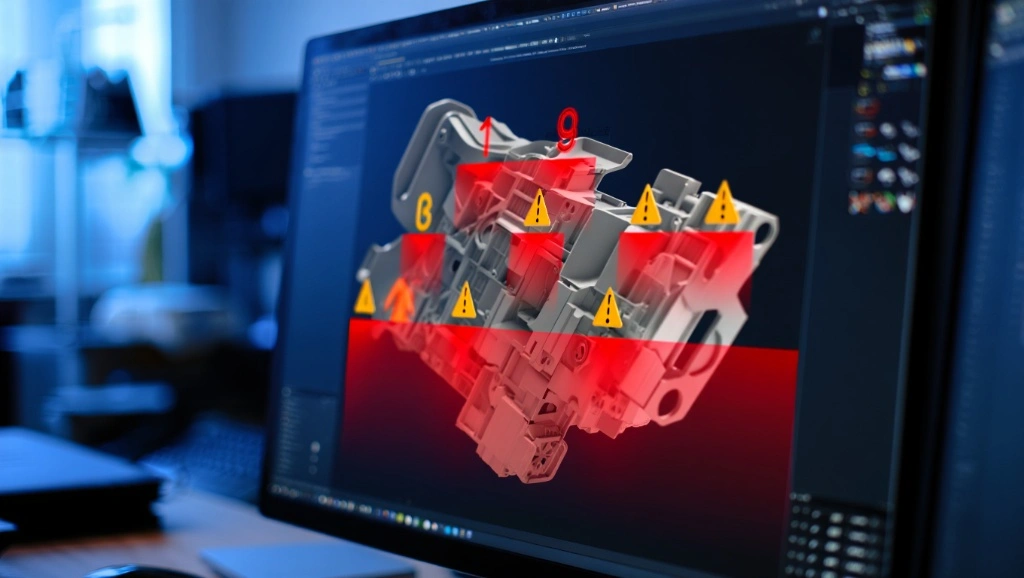
You may ask why, and the answer is simple. What you’re looking at on your screen isn’t a manufacturable part. It’s a ghost. It’s a digital Potemkin village and a facade that looks entirely structurally sound from the outside. However, it lacks the fundamental constraints, logical layer hierarchies, and realistic manufacturing tolerances required to actually exist in the physical world.
If we want to stop scrapping metal and wasting hours of production time, we have to change how we interact with these algorithms. The teams have to stop treating AI as an infallible senior engineer and start treating it like an overeager intern who has read a lot of textbooks but has never once touched a CNC mill. This is how to solve AI-generated CAD errors without any hassle.
The Anatomy of the Ghost Is Where AI Gets It Wrong
To fix the ghost in the machine, you first have to understand what the machine is actually doing behind the scenes. If you are asking experts, will AI replace CAD Drafters, the answer is no! AI doesn’t understand material science. It doesn’t know what tool chatter sounds like. It understands pixels, voxels, mathematical approximations, and training data.
When you start validating generative design, you quickly realize that the algorithm’s priorities are completely detached from physical reality. It optimizes for the prompt (say, “reduce weight by 20% while maintaining yield strength”), but it completely ignores the unspoken rules of drafting.
Here is exactly where the illusion falls apart.
1. The Jello Geometry (Missing and Broken Constraints)
In traditional parametric modeling, you build a foundation. You draw a line, you make it horizontal. You draw a circle, and you make it tangent to that line. Everything is locked in place by mathematical logic. If you pull one corner, the rest of the model reacts predictably. AI doesn’t build like this. It often generates dumb solids or completely unconstrained sketches.
You might click on a seemingly perfect rectangle generated by a Smart Block, only to discover that the corners aren’t actually coincident. There is a 0.00001mm gap between the endpoints. The lines aren’t truly parallel; they are off by a fraction of a degree. It’s jello geometry. If you try to extrude it, the software throws an error about open contours. If you try to modify a dimension, the entire sketch explodes into a chaotic spiderweb of unrelated lines because nothing was actually anchored to the origin.

2. The Anarchy of Layers
Anyone who has spent more than a week in a serious drafting environment knows that layer management is next to godliness. ISO and ASME standards demand strict adherence to line weights, hidden lines, center marks, and annotations. AI-assisted tools currently treat layers with sheer, unadulterated disrespect.
When dealing with Smart Block errors, you’ll often find that the AI has dumped every single entity (solid bodies, construction lines, reference points, and metadata) onto “Layer 0.” Or worse, it hallucinates entirely new layers with names that look like encrypted passwords.
Suddenly, your clean, standardized template is polluted with layers like AI_GEN_TEMP_0045_X containing critical geometry. When it comes time to plot the drawing or export it for CAM, the automated scripts fail because the layer hierarchy is a tangled mess of spaghetti.
3. Tolerance Amnesia
This is perhaps the most dangerous ghost of all. An algorithm lives in a frictionless vacuum. In the digital space, a 10mm peg fits perfectly into a 10mm hole.
On the shop floor, a 10mm peg going into a 10mm hole requires a sledgehammer. Generative design is notorious for creating organic, alien-looking structures to save weight. But how exactly are you supposed to machine a swooping, undercut internal cavity with a standard 3-axis mill?
The AI assumes a 5-axis CNC can reach anywhere, or that you’re going to 3D print the part out of titanium, regardless of your actual budget. Furthermore, it applies zero thought to Geometric Dimensioning and Tolerancing (GD&T). It won’t specify flatness, runout, or true position. It just spits out nominal dimensions, leaving the manufacturing team to guess what the allowable deviation is.
The Cost of Blind Trust
The friction between AI expectations and manufacturing reality is causing a massive hidden tax in the engineering world right now.
Let’s say you skip the AI CAD audit. You assume the Smart Block placed everything correctly. You push the design to the tooling department.
- First, the CAM programmer opens the file. Their toolpath software immediately chokes. The AI created a spline with 4,000 micro-segments instead of a simple, continuous arc. The machine code (G-code) generated from this is massively bloated, causing the CNC machine to stutter and leave a terrible surface finish as it tries to process thousands of microscopic directional changes.
- Then, the machinist tries to hold the part. Because the AI organically optimized every single surface to save 4 grams of weight, there are no parallel faces. There is literally nowhere to clamp the part in a standard vice. They have to spend three hours machining custom soft jaws just to hold your “optimized” part.
- Finally, the part makes it to Quality Control. The CMM (Coordinate Measuring Machine) operator checks the hole locations against the generated drawing. Because the AI didn’t properly constrain the geometry to the origin, the entire bolt pattern is shifted by 0.5mm. The part won’t mate with the assembly.
It gets tossed in the scrap bin. You didn’t save time. On the contrary, you just automated the creation of garbage.
Phase 1: The Sanitization Mindset
If we want to use these tools effectively (and we do, because the speed advantages are undeniable when managed correctly) we have to fundamentally change our workflow. You are no longer just a drafter. You are an editor. You are a geometry auditor.
An AI CAD audit isn’t something you do at the end of the project. It is an active, aggressive process of sanitizing the geometry the exact second it hits your workspace.
Step 1: The Quarantine Zone
Never, ever let an AI generate geometry directly into your master assembly file. Always force generative tools and Smart Blocks to output their results into a sandbox file which is a blank, isolated workspace. Think of it as a digital airlock. This prevents layer pollution from infecting your master templates and stops broken constraints from destroying your meticulously built parametric assemblies.
Step 2: The Micro-Segment Interrogation
Once the geometry is in the airlock, your first visual check isn’t for aesthetics. It’s for data density. Turn on your vertex visibility. If you see a simple curve that is made up of a black cloud of hundreds of control points, you have a problem. AI loves to approximate arcs using heavy, dense splines.
You need to aggressively simplify this geometry before it goes any further. Delete the dense AI splines and manually trace over them using standard 3-point arcs or simplified continuous splines with the absolute minimum number of control points necessary to hold the shape. Your CAM programmer will thank you, and your file size will drop by 80%.
Step 3: The “Tug Test”
Before you accept any 2D sketch generated by an AI tool, grab a corner and pull it. If the sketch is properly constrained, it will either refuse to move (fully defined) or it will stretch logically, maintaining parallel and perpendicular relationships. If it’s AI-generated jello, pulling a single vertex will cause the entire sketch to warp and collapse like a cheap tent.
You must systematically go through the sketch, applying geometric constraints—horizontal, vertical, tangent, concentric- until the ghost geometry becomes rigidly bound by mathematical reality. Only then can you trust the dimensions it claims to have
Phase 2: The Standardization Protocol
Once you’ve sanitized the raw geometry, the next battle isn’t about lines and arcs—it’s about compliance. An AI model doesn’t know the difference between a rough sketch and a sub-assembly destined for an aerospace contractor. To bridge this gap, you must force the “ghost” into a rigid framework of professional standards.
Fix AI-generated CAD errors quickly with this beginner-friendly guide.
Step 4: Enforcing ISO/ASME Layer Hierarchies
The fastest way to break a professional workflow is to allow AI-generated layer names to persist. Most AI CAD assistants create layers based on object types or, worse, arbitrary generation IDs.
Your first action in the sanitization phase is a Total Layer Remap.
- The Wipe: Move all AI-generated entities to a temporary “Construction” layer.
- The Purge: Delete every single empty or non-standard layer the AI created. This removes the metadata “noise” that can crash older PLM (Product Lifecycle Management) systems.
- The Rebuild: Systematically move geometry to your organization’s standardized layers (e.g., AM_0 for visible outlines, AM_3 for hidden lines, AM_7 for centerlines).
If the AI generated a smart block that looks like a fastener, do not assume it’s on the correct “Hardware” layer. Open the block editor, select all, and force the properties to ByLayer. AI often hard-codes colors and line weights into individual entities, which makes it impossible to control the final plot styles globally. You must strip these “overrides” to regain control.
Step 5: The Tolerance Translation (GD&T Integration)
AI is a “nominal” thinker. If a hole needs to be 12mm, the AI draws it at exactly 12.0000mm. It lacks the engineering intuition to know if that hole is a clearance fit for a bolt or a press fit for a bearing.
This is where the human enters the loop to perform a Tolerance Audit. You must manually overlay Geometric Dimensioning and Tolerancing (GD&T) symbols onto the AI’s suggestions to avoid common CAD drafting mistakes:
- Define the Datums: The AI doesn’t know which surface is your primary mounting face. You must manually assign Datums A, B, and C.
- Apply Positional Tolerance: Use the DIMTOL or TOLERANCE commands to specify how much the AI-generated bolt pattern can actually drift.
- Surface Finish Check: Generative design creates complex, “bony” structures. Use a surface texture symbol to indicate where the AI’s organic curves need to be smoothed via secondary machining and where the raw “as-cast” or “as-printed” finish is acceptable.
Phase 3: Validating Generative Design for Manufacturability
The biggest “Ghost” in the machine is the Un-machinable Curve. Generative design algorithms love splines because they are mathematically efficient for stress distribution. However, standard machine tools hate them.
The Mill-Path Simulation
Before you finalize an AI-suggested shape, run a mental (or open-source CAD software) collision check.
- Internal Radii: AI often creates sharp internal corners in pockets where a round end-mill physically cannot reach. You must manually add fillets to these corners based on standard tool diameters (e.g., a 6mm fillet for a 12mm cutter).
- Draft Angles: If the part is being cast or molded, the AI likely ignored draft angles. The part will be “locked” in the tool. You must use the TAPER or DRAFT tools to add the necessary 1° to 3° of slope to vertical faces that the AI drew as perfectly 90°.
- Wall Thickness: Use a “Thickness Analysis” tool. AI weight-optimization sometimes creates “paper-thin” sections, areas where the material is technically strong enough to hold the load but too thin to be machined without vibrating, warping, or melting.
Step 6: The Final Audit Log
In a high-stakes engineering environment, you cannot just say “I checked it.” You need a repeatable AI CAD Audit Workflow. Professionals are now moving toward a “Double-Signoff” method for any part containing more than 20% AI-generated geometry.
| Audit Step | Action | Success Criteria |
| Geometry Integrity | Run AUDIT and RECOVER commands. | Zero errors found in database. |
| Constraint Check | Toggle “Constraint Bars” on. | No floating or unanchored sketch entities. |
| Standardization | Run STANDARDS check against DWS file. | 100% Layer and DimStyle compliance. |
| Manufacturability | Check for internal sharp corners. | All internal pockets have tool-accessible radii. |
Conclusion
The Ghost in the Machine isn’t a sign that AI is failing. On the other hand, it is a sign that the technology is still in its infancy. Tools like AutoCAD 2026’s Smart Blocks are incredible force multipliers, but they are not a substitute for the Standard Operating Procedures that have governed the AEC and manufacturing industries for decades.
By treating AI geometry as untrusted data until it passes a rigorous sanitization process, you get the best of both worlds. You get the lightning-fast ideation of the algorithm and the bulletproof reliability of ISO-standard drafting.
Don’t let the ghost haunt your shop floor. Audit the geometry. Rebuild the constraints. Sanitize the data. The machine provides the suggestion; you provide the engineering.
Frequently Asked Questions
1. What are the most common “Smart Block” errors in AutoCAD 2026?
The most frequent issues involve “metadata mismatch” and “nested anarchy.” Often, AutoCAD’s AI will suggest a block that looks correct but contains nested layers that don’t match your current .dws (Drawing Standards) file. This creates a “Ghost Layer” effect where you cannot purge the drawing of non-standard data because it is buried three levels deep within an AI-suggested component.
2. Can AI-generated geometry pass an ISO 9001 or ASME Y14.5 audit?
Not out of the box. ISO and ASME standards require explicit intent—specifically regarding Geometric Dimensioning and Tolerancing (GD&T). AI tools currently prioritize “Nominal Geometry,” meaning they draw the perfect shape but fail to define the allowable limits of imperfection. To pass a professional audit, a human must manually apply datum feature symbols and characteristic frames to the AI-generated model.
3. How do you fix “Non-Rational” splines created by generative design?
When validating generative design, you’ll often find NURBS splines with an absurd number of control points. To fix this, use the REBUILD or FIT commands. By reducing the control point count, you convert the “AI noise” into a smooth, mathematically clean curve that a CNC controller can process without “stuttering” during execution.
4. Why does AI CAD geometry often fail during the CAM (Computer-Aided Manufacturing) phase?
The “Ghost in the Machine” often manifests as “Zero-Thickness Geometry.” Algorithms might create two surfaces that meet at a mathematical infinitely thin edge. While this looks fine in a render, a CAM toolpath generator cannot calculate a tool offset for a zero-thickness edge, leading to “Kernel Errors” or failed G-code generation.
5. What is the “Sanitization Workflow” for AI-assisted drafting?
Sanitization is a three-step process: Quarantine (opening the AI file in a sandbox), Interrogation (using the AUDIT and OVERKILL commands to delete duplicate or overlapping AI lines), and Standardization (forcing all entities to ByLayer and re-mapping them to approved company templates).
6. Does using AI in CAD increase the risk of “Digital Inflation”?
Yes. “Digital Inflation” refers to the massive increase in file size caused by AI-generated micro-segments. A simple bracket designed by a human might be 200KB; the same bracket optimized by AI can balloon to 5MB due to complex organic mesh data. This slows down XREFs and makes cloud-based CAD collaboration nearly impossible without aggressive geometry simplification.
7. How can I ensure AI-suggested blocks are manufacturable?
Never trust the “visual fit.” Always run a MINIMUM RADIUS check. AI often places blocks or generates fillets that are smaller than standard end-mill sizes (e.g., a 1mm fillet in a deep pocket). If your shop’s smallest standard tool is 3mm, the AI design is effectively “un-manufacturable” without expensive custom tooling.
8. Will AI eventually replace the need for CAD Standards?
Actually, the opposite is true. As AI generates more content, CAD Standards become the only way to maintain “Data Integrity.” Without strict standards, an engineering database becomes a “digital landfill” of unconstrained, unsearchable, and un-editable geometry. AI is a fast-pitcher; the CAD Standard is the catcher’s mitt.
9. What is the best way to audit AI-generated constraints?
The most effective method is the “Parametric Stress Test.” Change one major dimension in the AI-generated sketch. If the sketch doesn’t update symmetrically or breaks entirely, it lacks “Design Intent.” You must then use the AUTOCONSTRAIN tool, followed by manual adjustment, to lock down the geometry’s logic.
10. How do I remove AI “hallucinations” from my technical drawings?
In CAD, “hallucinations” appear as tiny, invisible artifacts, stray vertices or 0.001mm lines floating in 3D space. Use the PURGE (Regen) and OVERKILL commands with a very small tolerance setting. This “vacuums” the drawing, removing the microscopic debris that AI tools often leave behind during the generative process.