How To Troubleshoot And Repair Corrupted DWG Files Safely?
Struggling with files that won’t open, layers that disappear, and deadlines breathing down your neck? If you work with AutoCAD or any CAD platform, a corrupted DWG is one of those small emergencies that quickly becomes very bad. It doesn’t just waste time but also erases hours (or weeks) of work, scrambles sheets, and forces awkward, expensive recovery decisions. Industry surveys show software corruption accounts for roughly 10–14% of data-loss incidents, putting file corruption squarely among the common causes of lost work.
This guide is for people who need clear, practical steps and not platitudes. You’ll get a prioritized, non-destructive workflow: what to try first (and why), when to escalate, and how to validate that a recovered drawing is actually usable. Expect command snippets (RECOVER, AUDIT, PURGE, DXFOUT), safety rules (always work on copies), and realistic notes about third-party tools and privacy. Ready? Let’s stop the panic and start fixing.
Why DWG files get corrupted
There are multiple primary reasons behind DWG file corruption. Let’s go through some primary factor and reasons one at a time!
Crash or force-close during save
When AutoCAD (or your CAD app) is interrupted mid-save the file’s internal database can be left half-written. That half-written state often corrupts the file header or an object table, which makes the drawing refuse to open or throws “file not valid” errors. Watch for symptoms like an immediate failure to open, repeated “cannot read header” messages, or large gaps in the drawing when it does open. First actions: stop tinkering with the original — make a copy. Look for a .bak or .sv$ autosave file in the same folder or temp directory; rename it to .dwg and try opening that. If you can open anything at all, run RECOVER (or RECOVERALL), then AUDIT and SAVEAS to a new filename.
Network interruption or file locking on shared drives
Files written over unstable networks or onto a busy NAS are vulnerable. If the connection drops while the software is saving, bits of the DWG are missing or corrupted and the file lock state can confuse subsequent opens. Symptoms include inconsistent open behavior (file opens on one workstation but not another), “file already in use” warnings, or truncated file size compared to expected. First actions: copy the file locally (do not edit on the network). Check the NAS event logs if available. Try opening the local copy in AutoCAD; if it fails, attempt RECOVER. If the file opens intermittently, export geometry via WBLOCK or DXF from the workstation where it opens.

Failing HDD/SSD or bad sectors
Physical media failure is a stealthy culprit. Bad sectors corrupt the underlying bytes of a DWG; corruption can be random and affect headers, block tables, or object data unpredictably. Symptoms: multiple files in the same folder show odd errors, the drive reports read/write errors, or the OS flags I/O faults. First actions: immediately copy remaining files off that drive to a different healthy disk (use a disk image if the drive is flaky). Run SMART diagnostics and a surface scan but avoid writing to the failing disk. Try opening the copied DWG on a different machine. If copied data is inconsistent, consider professional data recovery before further writes.
Problematic third-party add-ins
Unlike open-source CAD software, plugins, linetype managers, or outdated industry-specific add-ons can inject custom objects and registry entries into a DWG. If the add-in fails or is missing on another machine, those registered application objects can break the file or produce proxy objects that render incorrectly. Symptoms: proxy object warnings on open, missing custom entities, or repeated errors pointing to a specific ARX/FAS/LSP. First actions: on a machine where the file was last known good, disable the add-in and try a SAVEAS to a clean DWG. Alternatively, use -PURGE with Regapps to remove orphaned registered app data (test on a copy first). If proxy objects persist, reinstall the add-in version that wrote the file and then export clean geometry.
DWG versions converted through non-RealDWG libraries
Some viewers, CAD converters, or third-party libraries implement DWG read/write logic imperfectly. Converting through those tools can alter internal structures, leaving a DWG that AutoCAD treats as malformed. Symptoms: drawing opens but missing blocks, unexpected layer changes, or errors when running AUDIT; sometimes only specific objects (custom entities) are lost. First actions: obtain the original DWG (if possible) and avoid round-trip conversions. If the only copy is the converted one, try saving as an older DWG version or export to DXF (choose a conservative, older DXF flavor like R12) and reimport into AutoCAD. Then run AUDIT/PURGE and inspect content carefully.
Power loss during writing
Sudden power loss is similar to crash-during-save but often affects multiple files and can corrupt the file system journal as well. Symptoms: several files in an active session show corruption; OS reports abrupt shutdown; autosave files may be incomplete. First actions: after restoring power, do not save new files to the same drive. Locate .sv$ autosave files in the temp folders and rename them to .dwg. Try opening those. Run disk checks to confirm file system integrity before returning to normal work. If several DWGs are corrupted, prioritize recovery on the most critical drawings first and consider restoring from a backup snapshot if available.
| Cause | Common symptoms | Recommended first action |
| Crash / force-close during save | Won’t open; header errors; missing geometry | Duplicate file; locate .bak/.sv$; try RECOVER → AUDIT → SAVEAS |
| Network interruption / file locking | Opens on one PC only; “file in use”; truncated size | Copy locally; check NAS logs; run RECOVER on local copy; export via WBLOCK if it opens |
| Failing HDD/SSD / bad sectors | Multiple files corrupt; OS I/O errors; SMART warnings | Image or copy files to healthy drive; run SMART; avoid writes; try opening copies |
| Problematic third-party add-ins | Proxy objects; ARX/LSP errors; missing custom entities | Test on machine with add-in; -PURGE Regapps on copy; reinstall add-in if needed |
| Conversion via non-RealDWG tools | Missing blocks; altered layers; AUDIT errors | Get original if possible; convert via DXF (older version) and reimport; run AUDIT |
| Power loss during write | Multiple corrupt files; incomplete autosaves; abrupt shutdown logs | Do not overwrite disk; find .sv$ files and rename; run disk check; prioritize critical DWGs |
Safety First: Preparation Before Recovery
Before you try fixing a damaged DWG, slow down for a moment. A few small precautions can prevent the file from getting worse. None of this is complicated, but skipping even one step can ruin your only working copy.
Always duplicate the file first
Try using cloud-based CAD collaboration to create a digital replica. You can also create a copy somewhere separate in the storage. Don’t open the original. Don’t rename it. Just leave it untouched. If the recovery attempt goes badly, you’ll still have a clean starting point. People lose entire projects because they edited the only version they had.
Preserve BAK, SV$, and DWL2 files
Those strange files AutoCAD drops into the folder aren’t junk. BAK and SV$ often contain snapshots created moments before a crash, and DWL2 helps AutoCAD understand the file state. Keep all of them exactly where they are until the job is done.
Move the file off the network drive to a local drive
Network paths introduce delays, glitches, and file-locking issues. When repairing a DWG, these small interruptions can cause even more corruption. Put the copy on your local drive where nothing interferes with read/write operations.
Temporarily disable autosave while testing
Autosave can activate in the middle of a repair command and rewrite the file at the worst possible moment. Turn it off just for the recovery phase. You can enable it again once the file stabilizes.
Scan the project folder for malware
Occasionally, the problem isn’t AutoCAD at all. A quick scan helps rule out infected scripts or damaged executables that attach themselves to drawing directories. It’s rare, but it happens enough to check.
Avoid uploading sensitive drawings to unknown online tools
Some repair sites promise quick results, but you don’t know what they do with the files afterward. If the drawing contains client work, internal layouts, or anything under NDA, don’t take the risk. Stick to offline tools you control.
This preparation step isn’t exciting, but it gives you a safer environment to attempt real recovery without making the file’s condition worse.
Non-destructive AutoCAD Workflow (Step-by-Step)
Corruption makes people jump straight into aggressive fixes, but that often causes even more damage. This workflow starts with the gentlest actions and works toward the heavier ones. Follow it in order; each step eliminates a different class of file problems.
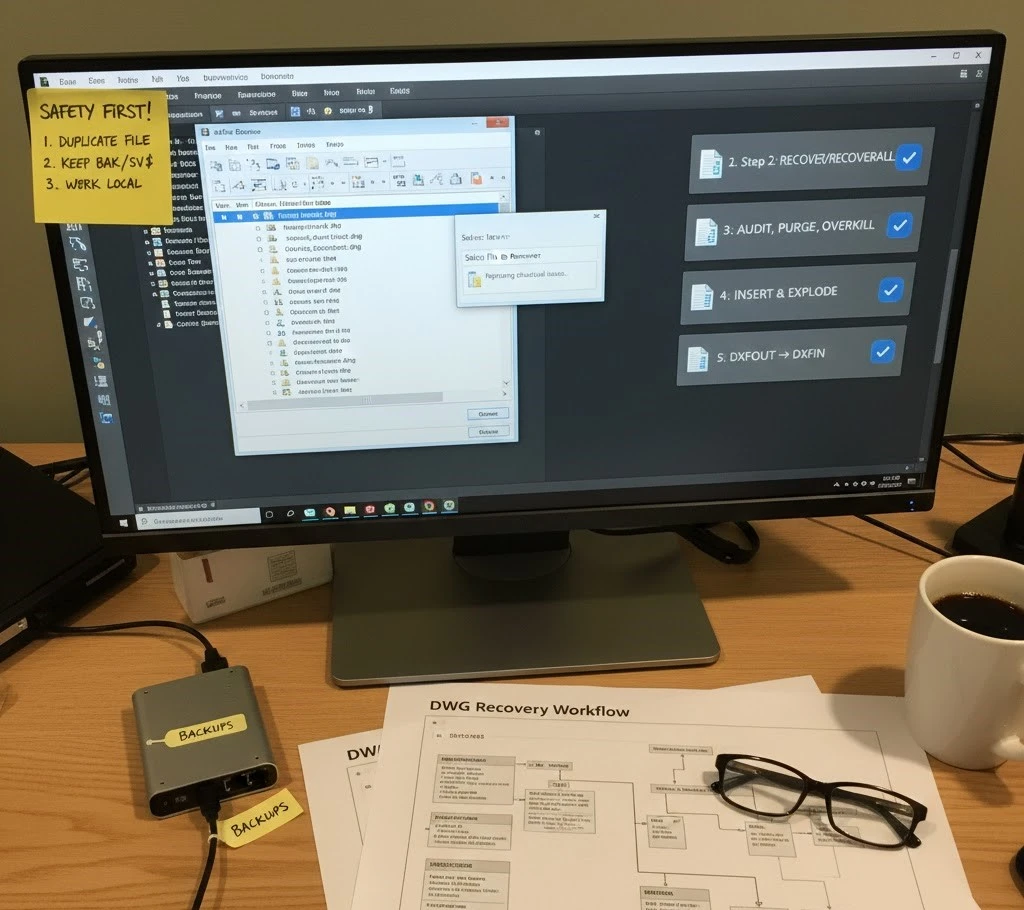
Step 1: Make copies & collect backups
Before touching anything, freeze the working environment. Zip the entire project folder so nothing inside shifts. Keep the BAK and SV$ versions exactly as they are; they may contain the only intact snapshot. A surprising number of “fully ruined” drawings are saved by an SV$ that AutoCAD quietly generated minutes before the failure.
Step 2: Use AutoCAD RECOVER / RECOVERALL
Open AutoCAD and start with an empty drawing. Don’t launch the corrupted file directly. Run RECOVER, point it to the damaged DWG, and let AutoCAD rebuild what it can. This tool tries to open the file while cleaning structural errors at the same time. Expect a long audit summary. Sometimes you’ll see notes about erased objects. That’s normal because those elements were already compromised.
If the project has many attached drawings, try RECOVERALL, which pulls in XREFs and fixes those too.
Step 3: Run AUDIT, PURGE, OVERKILL, then SAVEAS to a clean DWG
Once the file opens (even partially), run AUDIT. Let it fix everything automatically.
Then go through cleanup commands:
- -PURGE = purge Regapps They often carry leftover data from add-ins and can cause stubborn corruption.
- PURGE = remove blocks, layers, and other debris.
- OVERKILL = remove duplicates and overlapping lines that sometimes confuse AutoCAD’s object database.
After these passes, don’t overwrite the file. Use SAVEAS to write a fresh DWG under a new name.
Step 4: Insert the corrupted DWG into a blank drawing
If the file still misbehaves, use the “block insertion” trick. Open a new blank DWG, run INSERT, and choose the corrupted file. Place it anywhere. Then EXPLODE the block. This forces AutoCAD to reconstruct geometry without bringing along problematic file structures.
Follow up with AUDIT and PURGE again.
Step 5: Convert to DXF (DXFOUT → DXFIN)
Sometimes the internal DWG database carries hidden corruption that normal repair tools can’t touch. Export the drawing to DXF using DXFOUT. Choose an older format (R12 or R2000) because those versions strip out many advanced entities and leave only basic geometry.
Then reopen that DXF and convert it back to DWG with DXFIN. If the file loads normally, the issue was buried in the DWG object definitions and is now gone.
Step 6: Use WBLOCK to export clean entities
If the file still feels unstable, extract only the geometry you genuinely need. Run WBLOCK, select the entities you want to keep, and export them to a new, isolated drawing. This produces a clean DWG without carrying over corrupted dictionaries or phantom objects.
Step 7: If XREFs exist
Corruption can hide inside attached CAD and shop drawings, not the main one. Detach suspicious XREFs and test again. Repair each external reference separately or run RECOVER on them one by one. If your workflow allows it, enable the AutoCAD option to recover XREFs automatically when opening the host drawing.
Step 8: Use DWG TrueView or DWGCONVERT
When all else fails, try converting the file with AutoCAD’s free viewer. DWG TrueView and the DWGCONVERT command can resave the drawing into earlier versions. For reasons AutoCAD never fully explains, some corrupted files open fine after this down-conversion. Once it opens, clean it again and save it forward.
Learn How To Repair Corrupted DWG From Us
Recovering unsaved or deleted DWG files
Losing a file you never even saved feels different from ordinary corruption. It’s sudden, usually silent, and always stressful. But AutoCAD leaves more traces than people realize, and those traces can save you if you move quickly and avoid overwriting anything.
Check for SV$ autosave files in temporary folders
AutoCAD quietly creates SV$ files at intervals. These sit in temp directories, often forgotten until moments like this. If you find one with a timestamp that matches the crash, copy it somewhere safe and rename the extension to .dwg. Don’t open it inside the temp folder; pull it out first. These autosaves frequently contain almost the entire drawing, sometimes missing only the last few edits.
Search the project folder for BAK files
Every time you save normally, AutoCAD writes a BAK file. It is essentially yesterday’s version sitting right beside the current one. So, search for BAK files if you it is getting difficult to track your previous CAD models.
Only use file recovery software if the file was deleted
Utilities like undelete tools work only when the issue is deletion, not corruption. They simply look for file remnants still present on the drive. They will not fix a damaged header, a broken object table, or a bad DWG structure. Use these tools sparingly and only when you’re sure the file is missing entirely.
Avoid writing new files to the same drive after deletion
If the DWG was recently deleted, any new data written to that drive could overwrite the sectors where it lived. That means: stop copying things into that folder, avoid saving large files, and don’t install CAD software on that drive. The less activity, the better your chances that an undelete tool will find something intact.
Recovering unsaved drawings is a bit of a chase, but when approached calmly, those autosaves and backup copies often bring the project back from the brink.
How to Test & Verify a Recovered DWG
A file that opens isn’t necessarily a file that’s healthy. Corruption often hides in small places (block definitions, layer states, XREF links), so you need to check the drawing with a bit of suspicion before trusting it again.
Run AUDIT once more
Even if you already ran AUDIT during recovery, do it again. Freshly rebuilt drawings sometimes reveal new issues on the second pass. Let it fix everything automatically. If the error count drops to zero or close to it, you’re on the right track.
Check layers, blocks, dimensions, and attributes
Look for layers that suddenly turned off or became locked without reason. Test a few block insertions to make sure they behave normally. Inspect dimensions—broken associative links are common after heavy recovery work. Attribute blocks deserve a closer look; corrupted tags sometimes revert to default values or vanish entirely.
Validate all XREFs
Open the XREF manager and confirm every reference loads without warnings. If something shows “Unresolved,” it may point to a deeper problem. Reload each one manually. Corrupted XREF paths often break silently, so don’t assume anything based on the first open.
Plot a layout as a sanity check
Try plotting to PDF or a physical device. This is necessary if you are working on an as-built drawing. If the file has unstable plot styles, missing scales, or damaged viewports, you’ll notice here. It’s one of the fastest ways to expose problems with paperspace elements.
Ensure no proxy objects are missing
Some objects introduced by third-party add-ins may not survive recovery. If the drawing suddenly displays weird placeholders or warns about missing object enablers, review those areas carefully. You may need the original add-in installed to confirm nothing important was stripped out.
Testing doesn’t take long, but it tells you whether the drawing is truly stable or if it still contains small fractures waiting to fail later.
Tools comparison table
| Tool | Local / Cloud | Pros | Cons | Supports Versions | Cost | Privacy Risk |
| AutoCAD RECOVER / AUDIT | Local | Built-in, reliable, fixes structural issues, safest first step | May delete corrupted objects; slow on large drawings | Full DWG range supported by installed AutoCAD | Included with AutoCAD | Very low (local processing) |
| RECOVERALL (AutoCAD) | Local | Repairs host drawing and XREFs together; good for large projects | Heavy operation; may choke on deeply nested XREF chains | Same as AutoCAD version installed | Included | Very low |
| DWG TrueView / DWGCONVERT | Local | Converts problematic DWGs into cleaner versions; surprisingly effective | Limited editing ability; only fixes certain corruption types | Broad version support (older → newer, and reverse) | Free | Very low |
| Third-party offline repair tools | Local | Useful for damaged headers or unreadable sections; works without internet | Quality varies, may recover geometry but lose metadata | Depends on vendor | Usually paid or freemium | Low to moderate (still local, but vendor software involved) |
| Online DWG repair services | Cloud | Quick, no installation, sometimes recovers files AutoCAD rejects | Risky for sensitive projects; unknown data handling; limited transparency | Depends on service | Often free or low-cost | High (files leave your system) |
| Data-recovery utilities (undelete) | Local | Can restore deleted DWGs before they’re overwritten | Doesn’t fix corruption at all; only recovers missing files | File type agnostic | Many are paid | Low to moderate |
| DXFOUT / DXFIN workflow | Local | Strips bad objects; great when corruption hides deep in DWG structures | May lose advanced entities or formatting | DXF formats (R12, R2000, etc.) | Free (built-in) | Very low |
| WBLOCK extraction | Local | Pulls only clean geometry into a fresh DWG; excellent for stubborn cases | Labor-intensive if the drawing is huge | All supported by AutoCAD | Free | Very low |
FAQ
How do I use RECOVER in AutoCAD?
Open a blank drawing, run RECOVER, and select the damaged file. AutoCAD attempts to open it while repairing structural issues in the background.
What’s the difference between RECOVER and AUDIT?
RECOVER fixes the file as it opens. AUDIT cleans a drawing that already opened. RECOVER is the first aid; AUDIT is the follow-up check.
Can I fix a DWG file without AutoCAD?
Yes, but success varies. Tools like DWG TrueView or offline repair utilities can sometimes reopen damaged files, though they won’t match AutoCAD’s repair depth.
Is it safe to upload drawings to online repair websites?
Not always. You can’t verify how those services store or handle your files. Avoid them completely for confidential or client-restricted projects.
How do I find the autosave SV$ file?
Check AutoCAD’s autosave directory listed in Options. You may also find SV$ backups in the system temp folder. Rename the file to DWG before opening.
What does “DWG is not valid” mean?
It usually signals a broken header or unreadable database section. The file might still open after RECOVER, DXF conversion, or a WBLOCK extraction.
Does converting to DXF remove data?
Sometimes. Older DXF formats strip advanced entities, leaving only basic geometry. This can fix corruption but may drop custom objects or formatting.
Why do XREFs break when a DWG is corrupted?
Corruption disrupts paths, layer states, or block definitions. When the host file collapses, XREF connections often fail because they rely on stable internal references.
Can third-party tools restore 100% of objects?
No. They may retrieve usable geometry, but lost metadata or corrupted custom objects often remain unrecoverable, even with high-end utilities.
Conclusion
Corrupted DWG files feel like a dead end, but they rarely are. The safest approach is still the simplest: protect your backups first, then walk through AutoCAD’s own recovery tools before trying anything more drastic. Start with RECOVER. Follow with AUDIT, PURGE, and the usual cleanup cycle. If the drawing still misbehaves, move to strategies that strip away deeper problems. These include DXF conversion, block insertion into a clean file, or a controlled WBLOCK export. Save the third-party tools for situations where everything else stalls, and never trust a repaired file until you’ve tested it thoroughly.
If you’re stuck, don’t guess. Tell me the exact error message you’re seeing, whether it’s “DWG is not valid,” missing XREF warnings, or something stranger. I can walk you through the next steps based on your specific issue.